Potential Cause
If Right Click Tools do not appear in the Configuration Manager console after installation, this may be happening because Microsoft has changed the way that Console Extensions are allowed to display within the MECM console. In the past, any installed extension was allowed to display. That behavior has since changed. Currently, legacy console extensions must be configured to display their extensions.
Resolution
1. In your Configuration Manager console, go to Administration > Site Configuration > Sites.
2. Select Hierarchy Settings from the ribbon.
3. On the General tab, deselect Only allow console extensions that are approved for the hierarchy.
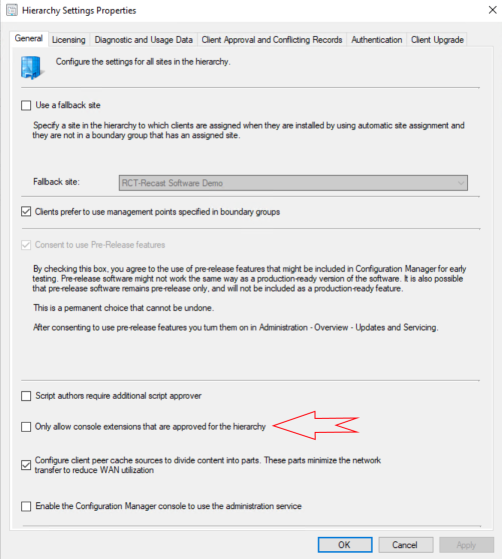
NOTE: If Right Click Tools still doesn't appear, try enabling the Only allow console extensions that are approved for the hierarchy option, relaunching the ConfigMgr console, then deselecting the option, and relaunching the console again.
Likely Cause
If Right Click Tools shows as the Community Edition after applying an Enterprise license, there are likely multiple license files in C:\ProgramData\Recast Software\Licenses that are conflicting with one another.
Resolution
1. Close the Configuration Manager console.
2. Delete all license files from C:\ProgramData\Recast Software\Licenses and %appdata%\Recast Software\Licenses .
3. Copy your most recent license file over to C:\ProgramData\Recast Software\Licenses.
4. Relaunch the console.
There are a few different reasons your Right Click Tools might be greyed out and unavailable.
KNOWN ISSUE (identified October 7, 2026)
Customers and Community users who upgrade to Configuration Manager version 2609 may see Right Click Tools menu items greyed out in context menus when using the console extension.
Workaround: We recommend running actions via the Right Click Tools browser extension for Edge or Chrome.
Troubleshooting Steps
Here are some troubleshooting steps and workarounds to follow depending on your version of Right Click Tools.
RCT Enterprise and Community
- Configuration Manager version 2609: Run actions via the Right Click Tools browser extension rather than the console extension.
- Configuration Manager version 2509: Run Recast Software's Update-ConfigMgrConsoleBindingRedirects.ps1 script. After running the script, all Right Click Tools upgrades should function correctly.
Enterprise Edition
Right Click Tools with Recast Management Server
- Check license validity: Confirm that your Enterprise license remains valid by checking the License Timeframe in the Recast Customer Portal.
- Check license status: Verify that you have downloaded your newest license file from the Recast Customer Portal and that your license has been uploaded to the Recast Management Server. For more information on checking your license status, see View Recast Software License Details.
- Check permissions: Verify that the user logging into the Configuration Manager console has been added as a user or part of a group, and that the user or group has been assigned a role with the appropriate permissions in the Recast Management Server. For details on checking permissions, adding users and assigning roles in the Recast Management Server interface, see Configure Right Click Tools with Recast Management Server.
Right Click Tools Standalone
- Check license validity: Confirm that your Enterprise license remains valid by checking the License Timeframe in the Recast Customer Portal.
- Check license status: Verify that you have downloaded your newest license file from the Recast Customer Portal and that your license has been added in the Configure Recast Console Extension application. If the problem persists, copy the license file directly to
C:\ProgramData\Recast Software\Licensesand restart the console. For more information on checking your license status, see View Right Click Tools Standalone License Details.
Community Edition
- Check license validity: Verify that you have a file named
RecastRCTFree.licensein the Licenses folder located atC:\ProgramData\Recast Software\Licenses. This file provides licensing information to enable the Community Version of the tools. If the file is corrupt, remove it and reinstall Right Click Tools to return the license file to the appropriate folder. If the file is missing, reinstall Right Click Tools.
KNOWN ISSUE (identified October 7, 2026)
Customers and Community users who upgrade to Configuration Manager version 2609 may experience console crashes after clicking on the Recast node. They may also see Right Click Tools menu items greyed out in context menus when using the console extension.
Workaround: We recommend running actions via the Right Click Tools browser extension for Edge or Chrome.
Beginning with v5.7.2411.1105, Recast Software applications and components have been updated to work with Microsoft's .NET 8. As a result, after upgrading to this and subsequent releases, some customers are seeing greyed out options or crashes in their Configuration Manager console when launching Right Click Tools.
We have isolated the issue to a shared library used by applications from many vendors on our customers' systems. Another vendor's application is misusing the shared library, causing the issue.
Troubleshooting Steps
1. Run Recast Software's Update-ConfigMgrConsoleBindingRedirects.ps1 script. After running the script, all Right Click Tools upgrades should function correctly.
NOTE: This script must be run again after each ConfigMgr update.
2. Review applications used by other vendors to identify the software causing the issue. Customers have reported success after uninstalling the HP Manageability Integration Kit (MIK) extension.
NOTE: In some cases, you may need to complete the following extra steps prior to reattempting HP MIK extension installation.
- Close your Configuration Manager console.
- Rename Serilog.dll to Serilog.old within the console folder.
- Copy C:\Program Files (x86)\Recast Software\Recast Console Extension\Serilog.dll to your console folder.
