You can use the Windows Management Instrumentation Tester (WBEMTEST) to test connectivity between a server and a client machine and determine if Windows Management Instrumentation (WMI) access is restricted on a remote host.
WBEMTEST is a native Windows utility included with the Microsoft Windows Server operating system.
To test WMI connectivity:
1. From the Windows Start menu, open Run.
2. Enter 'wbemtest' and click OK to open the Windows Management Instrumentation Tester.
3. Click Connect.
4. In the Namespace field, enter the name of the remote server to which you want to connect.
\\<RemoteServerName>\root\default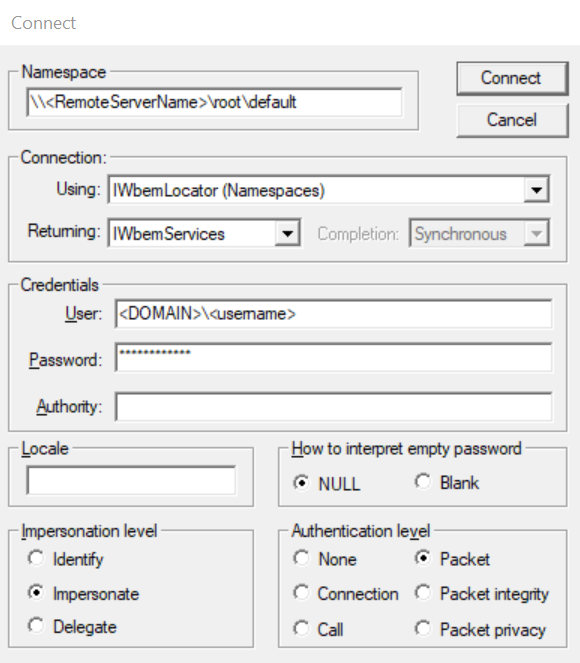
5. In the Credentials section, enter User, Password and Authority details. The user must have access to the remote server.
6. Click Connect.
If the connection is successful, the IWbem Services section will no longer be greyed out.
A No such interface supported error may be thrown by the local Windows Management Instrumentation (WMI) Service if you attempt to access functions from a host that blocks WMI requests or where there is a firewall between hosts. You can use the Windows Management Instrumentation Tester (WBEMTEST) to check if WMI access is being restricted on a remote host.
To verify the error:
1. From the Windows Start menu, open Run.
2. Enter 'wbemtest' and click OK to open the Windows Management Instrumentation Tester.
3. Click Connect.
4. In the Namespace field, enter \\<HOSTNAME>\root\cimv2, where HOSTNAME is the name of the remote server throwing the error. If either device is on a different domain or within a workgroup, specify administrator credentials for the domain or remote computer.
5. Click Connect. If WMI access is restricted, the No such interface supported error should appear.
For more information about WMI setup, see:
- Setting up a Remote WMI Connection - Win32 apps | Microsoft Learn
- Setting Up a Fixed Port for WMI - Win32 apps | Microsoft Learn
