Application information settings are located on the Patching Settings page in your Recast Management Server.
Basic Application Information Settings
Application Name Format
To add or edit basic application information settings:
1. From the Patching Settings page, click the Environments tab and select the Settings cog to the right of an environment.
2. On the Environment Settings page, open the Deployment Processes and Basic tabs.
The default naming format will display Publisher, Application, and Version information in that order (For example, Microsoft Office 365 v1.022.1076).

To edit the application name format, you can:
- Remove any categories you don't want to display in the application name by clicking the X next to the category.
- Add one or more categories to the application name by choosing them from the drop-down menu.
- Drag-and-drop the categories into the desired order.
To return the application name format to its default settings, click the Reset to Recast defaults icon.
Advanced Application Information Settings
To add or edit advanced application information settings:
1. On the Environment Settings page, click the Deployment Processes and Advanced tabs.
2. In the Application Information section, select an application category from the drop-down.
Available categories: Data Management, Other Apps, Business, Photos & Media, Development & Design, Computer Management, Productivity, Books & Reference, Collaboration & Social
3. Add a description. Maximum of 500 characters.
4. To display the software as a featured application, enable Display as featured app.

5. Enter a Privacy URL, an Owner, and Administrator Notes.
6. Scroll down and click Save & Close.
To return options to their default settings, click the Reset to Recast defaults icon.
Using email templates, you can automatically notify specified recipients whenever a deployment process executes. For additional granularity, there is also an option to send a notification when an individual deployment within a deployment process begins.
Prerequisites
Add an Admin Notification Recipient
When adding an email recipient, you'll choose the template used to send success notifications. Failure notifications always use the default template. Success and failure notifications are both enabled by default.
To add an email recipient:
1. On the Patching Settings page, click the Environments tab and select the Settings cog to the right of an environment.
2. Open the Deployment Processes > Basic tab or the Deployments > Basic tab, depending on the email template type.
3. In the Recipients section, click Add Recipient.

4. Enter the Recipient Name and Email address.
5. Select an email Template from the drop-down menu.
6. Choose whether to send the recipient success and/or failure notifications. By default, both options are set to 'Yes'.
7. Click Save & Close.
View Email Templates
You can view existing notification templates on the Settings page by opening the Email Templates tab. If you have not created any additional email templates, only the Default Deployment Process Template and Default Deployment Template will appear.
- Click the Template name to see the text and variables it includes
- Click the Usage number to see the deployment processes or deployments where the email template is used
- Click Preview to see a sample of the email notification using this template
Create a Deployment Process Email Template
For success emails, you have the option to create additional email templates that include the exact wording and specific details you choose.
To create an email template:
1. On the Settings page, select the Email Templates tab.
2. Click Add Email Template.
3. In the side panel that opens, enter a Template Name.
4. For the email template Type, choose 'Deployment Process'.
5. Enter Subject line and email Body text. In either field, you can choose to add one or more variables from the drop-down menu.
Deployment Process Template Variables: Publisher, Application, Version, Language, Architecture, Application Display Name, Deployments Process Name, Deployment Process Start Time
6. Click Save & Close.
Edit an Email Template
To edit the content or layout of an email template:
1. Click on the Template name to open the side panel.
2. Make your changes and click Save.
NOTE: You cannot edit the content of the Default Deployment Process Template or Default Deployment Template.
Delete an Email Template
To delete an email template:
1. Under Actions, click the ellipsis (...).
2. Select Delete Email Template and confirm the deletion. This action cannot be undone.
NOTE: You cannot delete the Default Deployment Process Template or Default Deployment Template.
You have the option to enable the installation of 32-bit applications on 64-bit operating systems. By default, the Update Targeting option is set to 'No'.
To allow 32-bit applications on 64-bit devices:
1. On the Patching Settings page, click the Environments tab and select the Settings cog to the right of an environment.
2. Open the Deployment Processes > Advanced tabs.
3. Under Update Targeting, toggle Install 32-bit applications on 64-bit machines to 'Yes'.

4. Click Save & Close.
Add a PowerShell script or an executable command to one or all deployment processes to run specific actions before and/or after installing or uninstalling application versions.
Example uses:
- Remove a previous application version from the endpoint prior to installing a new version
- Show users a notification to close the application before installation
- Apply the organization's default settings to the application after it installs
- Back up data before uninstalling an application
For a couple of real-world examples, see Aapo Kettunen's blog post: Pre- and Post-Install Actions in Right Click Tools Patching (ConfigMgr & Intune).
To add a pre- or post-install or pre- or post-uninstall action:
1. Navigate to the Installation and Uninstallation section in your deployment process settings or global settings, depending on whether you are adding an install or uninstall action to one deployment process or all deployment processes.
Single deployment process: From the Deployment Processes page, click the ellipsis (...) to the right of the deployment process and select Manage Settings. In the Deployment process settings side panel, click Advanced.
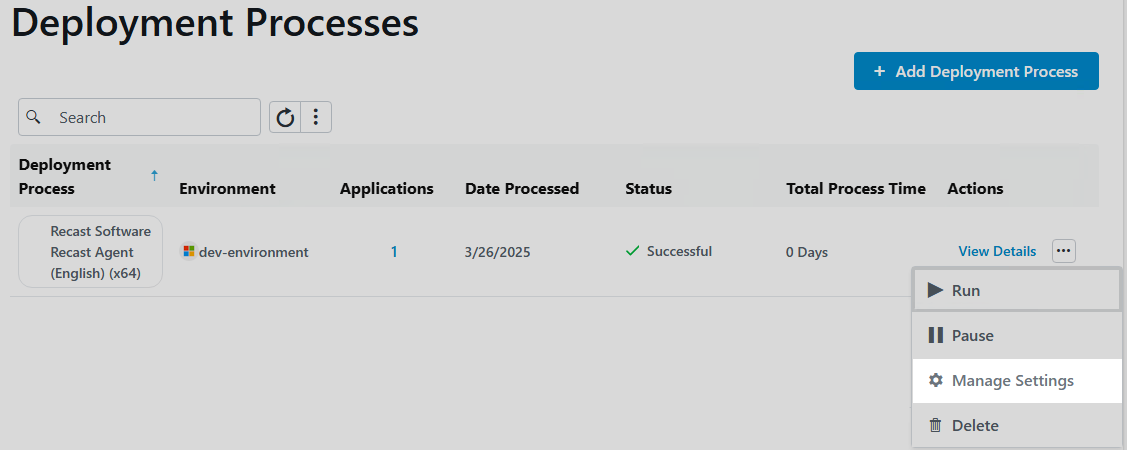
TIP: You can run install actions for an individual application by creating a deployment process that includes only that one application.
All deployment processes: From the Settings page, click the Settings cog to the right of the environment. On the Environment Settings page, click Deployment Processes > Advanced.

2. Enable Pre Install Action, Pre Uninstall Action, Post Install Action, or Post Uninstall Action by toggling the setting to 'Yes'.
3. In the side panel, select PowerShell or Executable.
Script
- Select Use inline PowerShell script to add your PowerShell script directly within the inline editor.
- Select Specify UNC path to PowerShell script file to add a folder path under Additional Files & Folders. Files included here are copied to the RecastAM folder in your application's deployment package. To reference files in the installation scripts, prefix them with the relative path. Ex. RecastAM\Script.cmd
Executable
- Enter an Installation Command and optional Parameters.
- You must add the installation command under Additional Files & Folders if it does not already exist on the device. Files included here are copied to the RecastAM folder in your application's deployment package.
- Add Parameters to your command (optional). You can include variables (Application, Publisher, Architecture, Language, Version) by choosing one or more from the drop-down menu.
- The full install command will display below the field as you build it. Ex. /silent/log:"%temp%\Microsoft\Office 365_1.022.1076.log"
NOTE: Add quotation marks around executable names that include spaces.
4. Click Save & Close.
Available deployment process settings related to additional installation parameters:
- Installation/Uninstallation Parameters: Append installation or uninstallation parameters to the default install/uninstall commands used by Right Click Tools Patching. This option could be used, for example, to force the Windows installer to write a verbose log file to a specified location. Additional parameters cannot be used to override the default installation commands. All applications deployed by a deployment process where additional parameters are applied must be able to use the commands specified using this setting.
TIP: We recommend creating an individual deployment process for each application that requires additional parameters, and then adding those commands to each of the newly-created deployment processes, rather than applying a global setting.
- Restart Behaviour: Set the default device restart behaviour after installation.
Available options:
- Determine behaviour based on return codes (default)
- No specific action
- The software install program might force a device restart
- Client will force a mandatory device restart
- Allow the Available Uninstall: By default, this option is set to Yes.
Settings related to content locations:
- MECM Root Folder: Name of the folder that appears in the Applications section of the Configuration Manager console. All imported third-party packages will be placed in it.
- Distribution Point Group: Target distribution point group for application media.
You can enable cleanup features for old application versions and set whether previous versions are automatically retired and/or removed when the deployment of a newer version begins. These settings can be applied to all deployment processes or to individual deployment processes.
When using Available with forced upgrade as a deployment type, do not enable Cleanup as it will break the forced upgrade on devices where the cleaned-up version still exists. For this deployment type, set Clean up previous versions to 'No' in your deployment process level settings.
To set deployment process cleanup options:
1. In your Recast Management Server, navigate to Patching > Settings.
2. Choose to retire and/or remove old application versions. By default, all cleanup options are set to Yes.
- Clean up previous versions: Enables or disables cleanup functionality
You can also choose to enable two additional tasks:
- Retire previous versions: Automatically retires old application versions.
- Remove retired versions: Automatically removes retired application versions from Configuration Manager and removes installation files from the server.
To set the deployment process cleanup interval:
1. In your Recast Management Server, navigate to Administration > Settings.
2. Set the Cleanup Applications Interval. By default, cleanup is set to occur every 10 minutes.
Deployment process settings related to content:
- Persistent content in client cache: Sets whether clients keep the application media in cache. Default is 'No'.
- Download on slow network: Default is 'Yes'.
- Allow fallback source location for content: Default is 'Yes'.
Deployment process settings to configure the supercedence rules around application versions.
- Enable supersedence
- Uninstall superseded applications before installation: Default is 'No'. Right Click Tools Patching can update previous application versions without the uninstall option. The automatic task sequence update feature will not work if this option is set to 'Yes'.
- Select supercedence method
- Active previous version: Supercedes all active previous versions that aren't retired (default)
- All previous versions: Supersedes all previous versions that aren't retired
- Previous version: Supercedes only the previous version
Deployment process settings to adjust the user experience.
- Running processes that must be closed before installation
- Add, Edit or Delete Process (The Executable File Name must have .com or .exe extension)
- Allow application installations when
- Application package default: Follow default value defined in the applications catalog
- User is logged in: Applications can only be installed when user is logged on
- No users are logged on: Applications can only be installed when there are no users logged on
- Always: Applications can be installed whether there is user logged or not
- Maximum Allowed Runtime: Sets the longest time the application install should run. Default is 120 minutes.
- Estimated Installation Time: Sets the estimated installation time. This value is visible to the end user in Software Center. Default is 0 minutes. Maximum value is 12 hours.
Reset All Deployment Processes to Default Settings
After the default deployment process configuration is set up, you might choose to set different options for other deployment processes. It's possible to return all deployment processes to default settings but doing so means that any custom settings will be lost.
To re-apply default settings to all deployment processes:
1. From the Patching Settings page, click the Settings cog to the right of an environment.
2. Open the Environment Settings > Deployment Processes tab.
3. Click Reset all to default and confirm the reset.
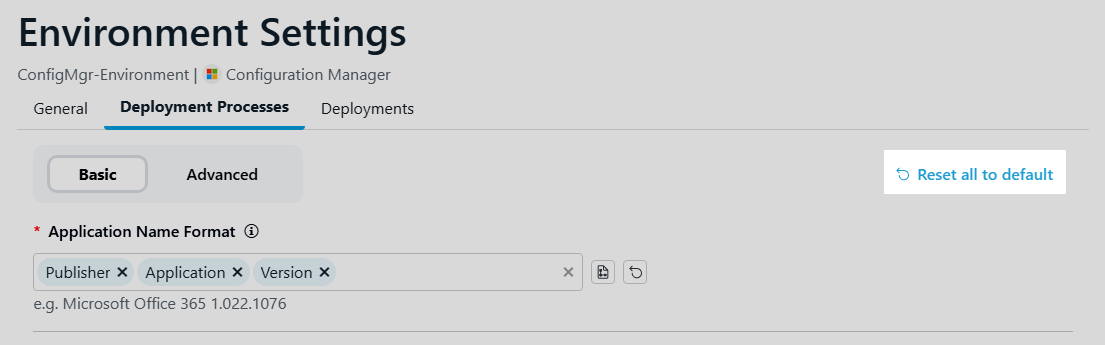
Reset Individual Settings to Defaults
To return an individual setting to its default, click the Reset to Recast defaults icon next to the setting.

