On Recast's Application Catalog page, you can browse the 100 most commonly used applications that Right Click Tools Patching supports. The list also includes some key software used in healthcare, education, government, finance, and other fields.
This compilation represents just a fraction of the 6000+ applications in the Patching catalog.
The Recast Management Server Applications page displays the entire Right Click Tools Patching catalog, as well as any custom applications you add. While all Recast customers with access to RMS can view the full catalog, the number of software applications available for deployment depends on your Recast licensing.
The Recast Catalog tab displays RCT Patching-supported applications. The My Catalog tab lists your custom applications.
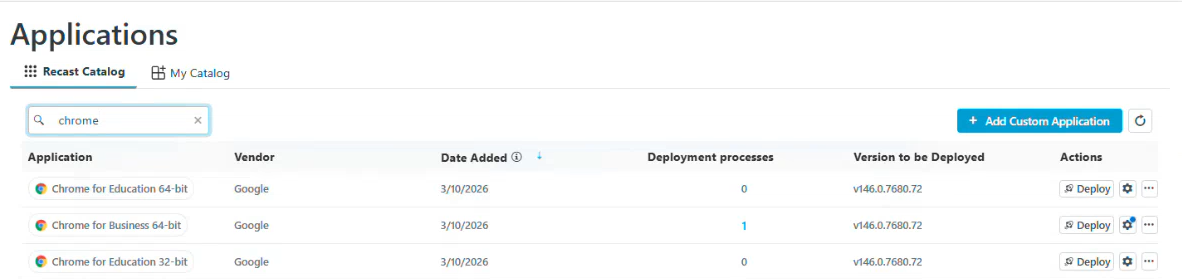
Application information:
- Application name
- Vendor
- Date Added: Sorted by most recent release date by default
- Deployment Processes: Click the number link to view deployment processes that include the application
- Version to be Deployed
- Actions
- Deploy an application immediately
- View deployment process settings - a blue badge on the Settings cog indicates that one or more deployment process settings has been changed for this application. See Configure Deployment Process Settings for an Individual Application.
- Remove an application from a deployment process
- Delete an application
All Right Click Tools Enterprise customers and Community users can see and search the entire catalog of applications that can be deployed and updated using Right Click Tools Patching. Use the Catalog Search feature in your Configuration Manager console to explore the 6000+ applications in the catalog or to quickly check that a specific application is available to deploy and/or update with RCT Patching.
NOTES:
- You do not require a Patching license to view and search the full application catalog.
- This feature requires outbound access to the application catalog at https://amprod02.recastsoftware.com.
- This feature is available in Recast Software Version 5.11.2509.1603 or later.
- Each column is sortable and all catalog information is searchable.
To locate the Patching Catalog in Configuration Manager:
1. Navigate to Assets and Compliance > Overview > Devices.
2. Right-click on a device and select Patching > Catalog Search.
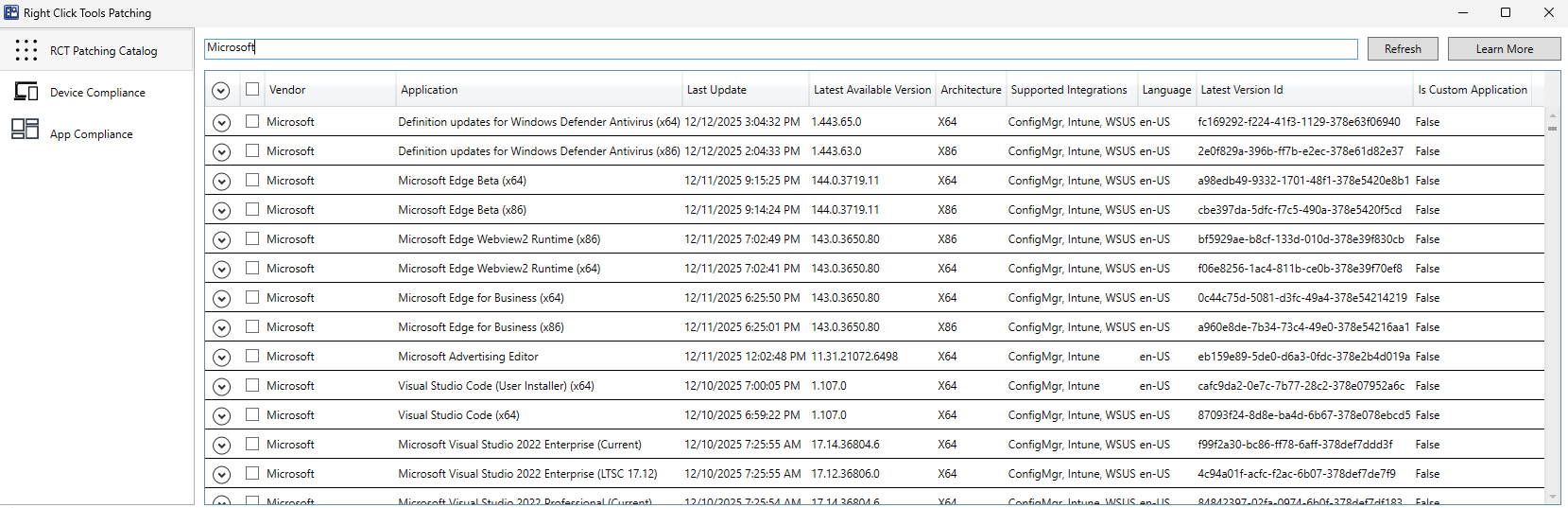
The Patching Catalog displays the following application information:
- Vendor
- Application name
- Last Update date
- Latest Available Version number
- Architecture
- Supported Integrations (Configuration Manager, Intune. WSUS)
- Language
- Latest Version ID
- Custom Application (True/False)
