Problem
The application installation media won't show up for the specified UNC path even though a deployment process is running and network requirements have been verified. You might see an 'Access to the path '\\UNC\PATH' is denied' error message in the Recast Proxy log file.
Resolution
1. Navigate to the UNC path you configured during initial setup.
TIP: You can also find the UNC path on the Environment Settings page's General > Advanced tab in your Recast Management Server.
2. Open folder properties and go to the Sharing tab.
3. Click Advanced Sharing and Permissions.
4. Add your Recast Proxy service account and grant Change permissions.
5. Go to the Security tab.
6. If missing, add the Recast Proxy service account and grant Modify permissions to the folder. Verify that the permissions will be inherited by all sub folders.
7. Wait 30 minutes (default import interval) or run the Import New Applications scheduled task to start the download process instantly.
Problem
- Application installation media won't download and/or
- The application list is empty when attempting to choose applications for a deployment process and/or
- You see an Unable to connect to the remote server error message in the Recast Proxy log file
Troubleshooting Steps
Make sure outbound requests are allowed from the Recast Proxy server to the external domains listed in the Network Requirements section of the System Requirements.
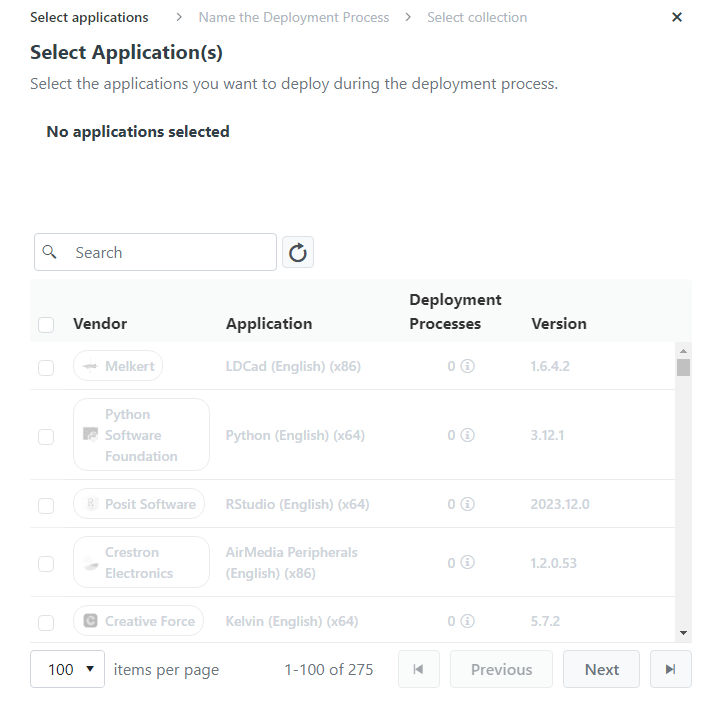
If you are attempting to choose applications for a deployment process and the application list is greyed out, it's possible that your Right Click Tools Patching license hasn't been uploaded to Recast Management Server.
Resolution
Licenses for all your Recast Software products and components are available from the Recast Customer Portal. You can add your downloaded licenses to the Licenses page in your Recast Management Server.
Right Click Tools Patching and Privileged Access Licensing
With Patching and Privileged Access integrated into your Recast Management Server, you won't see either listed separately in the Recast Customer Portal. For these Right Click Tools add-ons, downloading your Recast Management Server license from the portal and uploading it on the Licenses page will activate Patching and/or Privileged Access functionality in RMS.
To add Recast licenses to RMS:
1. Download or copy your Recast Software product and component licenses from the Recast Customer Portal by navigating to the Downloads page and clicking the Download Licenses button.

2. In your Recast Management Server interface, navigate to Administration > Licenses.
3. Click Upload and select licenses.

Problem
You are licensed for Right Click Tools Patching Enterprise but are not seeing the full software catalog on the Applications page in your Recast Management Server.
Troubleshooting
- Confirm that your Recast Management Server and Recast Proxy have access to the required external domains for Patching Enterprise.
- Ensure that you are running Recast Software Version 5.4.2403.901 or later.
Problem
Right Click Tools Patching was working previously but has stopped downloading new updates even though a deployment process is running and requirements have been verified. You might see Application is shutting down... as the last message in Recast Proxy log file.
Resolution
Start or restart the Recast Proxy service.
Some applications, like Adobe Acrobat and Adobe Acrobat Reader, consist of two components: a base installer (msi) and an update (msp).
The Right Click Tools Patching Enterprise catalog contains both components as separate applications, and we recommend deploying only the update application as it will automatically create a dependency for and install the msi, if not already installed.
Adobe Acrobat DC Pro and Standard updates are exceptions to this rule. For these applications, you must add the Acrobat DC (Continuous) base installer to the same deployment process in order to install the application on devices without a previous version.
Why am I seeing really old base installers in the Patching catalog?
The base installer may have been released by Adobe years ago, and you may see these older releases in the Patching catalog. The original base installer release date does not reflect the security posture or feature level of the deployed and updated application. Once the installed application is updated, it is fully current.
DEPLOYMENT NOTES:
- We recommend that you continue using the same Reader DC branch (language and architecture) as previously to prevent any installation issues.
- To change to a different architecture or language, you may need to uninstall previous versions using a pre-install script or by creating a supersedence relationship for an old version with the uninstall option selected. See Supercedence settings for MECM or Intune.
- 64-bit Acrobat DC cannot replace 64-bit Reader DC. Reader DC needs to be uninstalled before Acrobat DC can be installed.
- 64-bit Reader DC is named as Adobe Acrobat DC (64-bit) under Programs and Features even though it is just a free Reader DC. This is because 64-bit installer is a unified installer for Acrobat and Reader DC.
- The most commonly deployed Reader applications in RCT Patching are Acrobat Reader DC update - All languages (x86) and Acrobat Reader DC update - All languages (x64).
- To update a specific Reader DC language that is not Multilingual (MUI) or English, you can deploy Acrobat Reader DC update - All languages but you must remove the dependency relationship to the English base installer from MECM/Intune using the Exclude Dependencies feature.
- You can only install our x86 Adobe packages on x64 machines, as Adobe Acrobat and Acrobat Reader no longer support Windows 32-bit operating systems.
Update Adobe Acrobat Products with Software Updates for ConfigMgr
Alternatively, you can use RCT Patching's Software Updates for ConfigMgr feature to update Adobe applications.
To deploy and update Acrobat Reader using Software Updates for ConfigMgr:
1. Include 'Acrobat Reader DC - English (x64)' (or other language or MUI/other architecture) in the deployment process and target it at devices where Adobe Acrobat Reader needs to exist.
2. Add 'Acrobat Reader DC update - All languages (x64)' (or another architecture) to the Software Updates for ConfigMgr deployment process.
When using this approach, there is a delay between the base install and the update to the latest version.
Acrobat DC and Reader DC Applications & Dependencies
The following list contains all Acrobat DC and Reader DC applications and their dependency products in the RCT Patching Enterprise catalog.
NOTE: RCT Patching Enterprise also has rarely used Classic track products like Reader 2017, 2020 and 2024. In those cases, we also recommend deploying just the product with "update" in its name.
Acrobat DC (Continuous) (x64)
- Base installer (msi) for 64-bit Acrobat DC
- Cannot be used to update existing installations
Acrobat DC (Continuous) (x86)
- Base installer (msi) for 32-bit Acrobat DC
- Cannot be used to update existing installations
Acrobat DC Pro and Standard update - All languages (x64)
- Acrobat DC (Continuous) (x64) added as a base installer dependency
- You must deploy the base installer (msi) separately or add the base installer to the same deployment process
Acrobat DC Pro and Standard update - All languages (x86)
- Acrobat DC (Continuous) (x86) added as a base installer dependency
- You must deploy the base installer (msi) separately or add the base installer to the same deployment process
Acrobat Reader DC - English (x64) (EXE)
- Can be used for new installations and to update English 64-bit Reader DC installations
- msi and msp are bundled into one application which can make deployment simpler
Acrobat Reader DC - English (x64)
- Base installer (msi) for Acrobat Reader DC - English (x64)
- There are also base installers for every other available language
- Cannot be used to update existing installations
Acrobat Reader DC - English (x86)
- Base installer (msi) for Acrobat Reader DC - English (x32)
- There are also base installers for every other available language
- Cannot be used to update existing installations
Acrobat Reader DC update - All languages (x64)
- Acrobat Reader DC - English (x64) added as a dependency. You can deploy this application without having to deploy the base installer separately.
Acrobat Reader DC update - All languages (x86)
- Acrobat Reader DC - English (x86) added as a dependency. You can deploy this application without having to deploy the base installer separately.
Acrobat Reader DC (MUI) (x64)
- Base installer (msi) for Acrobat Reader DC (MUI) (x64)
Acrobat Reader DC (MUI) (x86)
- Base installer (msi) for Acrobat Reader DC (MUI) (x32)
Acrobat Reader DC update - Multilingual (MUI) installer (x64)
- Acrobat Reader DC (MUI) (x64) added as a dependency. You can deploy this application without having to deploy the base installer separately.
Acrobat Reader DC update - Multilingual (MUI) installer (x86)
- Acrobat Reader DC (MUI) (x86) added as a dependency. You can deploy this application without having to deploy the base installer separately.
Error
When attempting to run software updates with Right Click Tools Patching, the Status column on the Software Updates for ConfigMgr page displays a 'Publishing operation failed, too many locally published categories' error.
Cause
The error indicates that the number of categories or products in a third-party vendor's catalog exceeds the limit of 100 that WSUS allows to be published.
Troubleshooting Steps
For customers using Ivanti: Try running Ivanti's Manage Products tool to delete product and vendor categories.
Error
When attempting to run software updates with Right Click Tools Patching, the Status column on the Software Updates for ConfigMgr page displays an error with a 'CreateDirectory failed' message in the tooltip.
Troubleshooting Steps
Check that the WsusContent and UpdateServicesPackages folders and shares exist
1. In your ConfigMgr console, navigate to your WSUS folder and check that both the WsusContent and UpdateServicesPackages folders exist.
NOTE: If the shares don't exist, create the folders manually.
2. Navigate to Computer Management > System Tools > Shared Folders > Shares and check that both WsusContent and UpdateServicesPackages shares are listed with the correct folder paths.
NOTE: If either folder exists but isn't shared, right-click on the folder and go to Properties. On the Sharing tab, click Advanced Sharing and enable Share this folder.
Check that the WsusContent and UpdateServicesPackages shares have the necessary permissions
1. For the WsusContent and UpdateServicesPackages shares, open the Properties window.
2. On the Share Permissions tab, check that Allow permissions are granted for these local users and groups:
- NETWORK SERVICE
- WSUS Administrators
- Administrators
3. On the Security tab, check that Allow permissions (Full control) are granted for these local users and groups:
- SYSTEM
- NETWORK SERVICE
- WSUS Administrators
- Administrators
NOTE: If required permissions are missing, add them.
For a WSUS content shared folder that is hosted on the same server as WSUS: the SMB Share Permissions and Security tabs should show the local SYSTEM identity object with Allow/Full Control permissions.
For a WSUS content shared folder that is remote from the WSUS server: the Share Permissions and Security tabs should show the AD computer account of the WSUS server with Allow/Full Control permissions.
