The Insights Warranty Information page offers a detailed view of current warranties for devices managed in Microsoft Intune.
Prerequisites
- Right Click Tools Insights license
- Insights installed with Recast Management Server and Recast Proxy
- Recast Proxy configured for warranty information collection
- Service connection from your Recast Management Server to Entra ID (Azure Active Directory)
- The following Application permission added in the Microsoft Graph API for the application:
- DeviceManagementManagedDevices.Read.All
To view the Warranty Information dashboard in your Recast Management Server, navigate to Insights > Warranty Information. The page displays data in both a dashboard view and a devices view.
Dashboard View
The dashboard view displays three charts:

- Devices by Warranty Status: Displays the number of devices according to warranty status (Active, Expiring Soon, Expired, Unknown). Expiring soon means that the warranty will expire within 120 days. The warranty status may be unknown if the warranty collection process has not yet completed.
- Devices by Manufacturer: Shows device information for the top five most frequent vendors in your environment. Click on a vendor for a filtered view of devices from that manufacturer.
- Warranty Expiration Timeline: Shows warranty expiration by month over the year to come.
TIP: You can resize the cards or drag-and drop them into a different layout. Refreshing the page returns the cards to their default positions.
Devices View
The Warranty Information page's Devices tab shows additional device warranty details. You can sort, filter, add, remove, and resize columns, and search all device warranty information. There is also an option to Export to CSV which can export unfiltered and filtered data.
TIP: You can resize, lock, add, and delete columns to customize your Devices view. Click the vertical ellipsis next to a column heading to see options.

The Devices tab displays the following warranty information:
- Device Name
- Primary Intune User
- Manufacturer
- Model
- Serial Number
- Remaining Coverage (in days)
- Warranty Start Date
- Warranty End Date
- Device Age
The Right Click Tools Insights Device Inventory page in your Recast Management Server displays information about the inventory classes that are created when you deploy the Recast Agent application for Insights. The data moves directly from the Recast Agent to your Recast Management Server database (via Recast Agent Gateway), meaning that you can access information for devices regardless of whether they are managed via ConfigMgr, Intune, ServiceNow, or other platforms.
Prerequisites
- Right Click Tools Insights license
- Insights installed with Recast Management Server and Recast Proxy
- Recast Agent application deployed to devices for which you want to see inventory class data
- Minimum Recast Software Version: 5.11.2512.1807
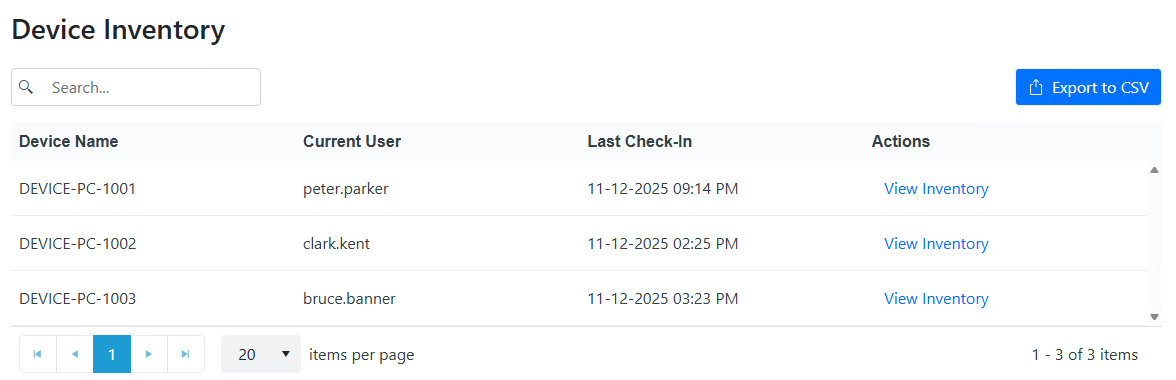
You can find the page in your Recast Management Server by navigating to Insights > Device Inventory. The list of Recast Agents is searchable and can be sorted by Device Name or Current User.
Device Inventory
The Device Inventory page displays the following information for all devices that have a Recast Agent:
- Device Name
- Current User - Displays one or more logged on users
- Last Check-In - Date and time that the device last reported information from its inventory classes
- Actions
- View Inventory - Click to view detailed inventory information for a specific device
Beginning with Right Click Tools v5.12.2607, rate limiting implemented on the inventory Agent prevents excess SQL server load when a large number of agents attempt to send inventory concurrently. Agents will instead wait and try sending their inventory data when the server is less busy.
Common Scenarios
- A large number of devices come online at 8 am, having missed their last inventory windows, and are all queued up to send.
- After deploying several thousand Agents at the same time, they all attempt to send their initial inventory.
Device Details
The Device Details side panel displays information related to the attributes included in an inventory class. All classes and attributes are listed below.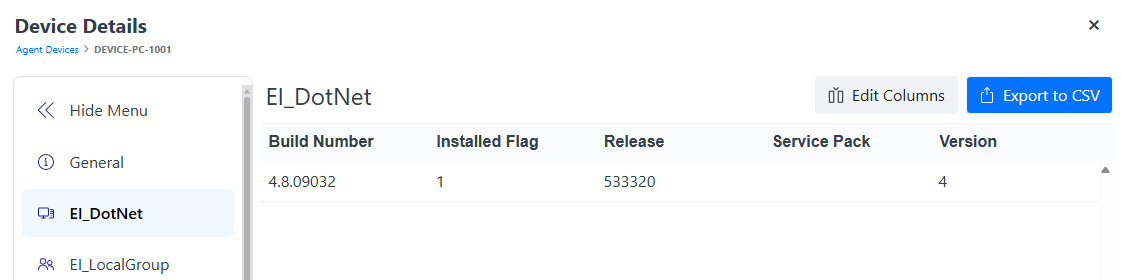
Edit Columns: Where an inventory class includes more than 6 attributes, you can edit columns to add to or edit the attributes shown. The Device Details side panel currently reverts to displaying the default columns as soon as you switch tabs.
Export to CSV: To more easily view data for 6+ attributes, we recommend selecting and exporting all the columns you want to see.
NOTE: A specific class will only appear if there is information to display.
| Classes | Attributes |
|---|---|
| General | FQDN - Fully Qualified Domain Name
SID - Security Identifier SMS ID - ConfigMgr ID Entra ID Intune ID RA (Recast Agent) Certificate Thumbprint |
| EI_DotNet
|
Build Number
Installed Flag Release Service Pack Version |
| EI_LocalGroup | Category
Local Group Name SID Type User Domain User Name Well Known Group |
| EI_LocalUser | Caption
Description Disabled Domain Full Name Lockout Name Password Changeable Password Expires SID Well Known User |
| EI_Monitor | Active Monitor
Alt_SN 1 Analog Aspect Ratio Calculated Serial Device ID Digital EDID Ver EI_Monitor Name Horizontal Resolution Lic_To Low Power Manufactured Date Manufacturer ID Max Diag Max Horiz Max Inch Diag Max Inch Vert Max Vert Model Pn PID Power On Resolution Acronym Serial Number Standby Suspend Swapped Serials Version Vertical Resolution |
| EI_Monitor_CRes | Cloned
Color Basis Current_Horiz Res Current_Vert Res EI_Monitor Name Flags Horiz Pos MIR Flags Pixel Format Pixel Rate PNPID Primary Rotation Scaling Serial_Number Stride Vert Pos Video Output Video Standard |
| EI_NIC | MAC Address
Name Power Wake Active Power Wake Device Instance Name Power Wake Enable Wake On Magic Packet Only Active Wake On Magic Packet Only Enable |
| EI_ODBCDrivers | API Level
Bit Type Connected Functions CP Timeout Driver Driver Name Driver ODBC Ver File Usage Setup SQL Level Usage Count User Name |
| EI_Powershell | PowerShell Version
PS Compatible Version Reg Key Runtime Version |
| EI_Proxy | Auto Config Proxy
EI Last Run Date Migrate Proxy Proxy Enable Proxy Override Proxy Server User Domain User Name |
| EI_Share | Caption
Name Path Type |
| EI_UserARP | Architecture
Display Name Install Date Product Id Publisher User Domain User Name Version |
| EI_UserDrive | Compressed
Description Detection Method Device ID Drive Type File System Free Space Media Type Name Provider Name Size User Domain User Name Volume Name Volume Serial Number |
| EI_UserPrinter |
Comment
Device Id Driver Name Is Default Printer Is Network Printer Location Port Name Server Name Share Name User Domain User Name |
| EI_Volume | Boot Volume
Capacity Caption Device ID Drive Letter Drive Type Free Space Label Serial Number System Volume |
| EI_WIRE_SKU ♦ | Instance Name
System SKU |
| EI_WIRE_SN ♦ | Serial Number
Tag |
| Win 32_BIOS |
BIOS Version Build Number Description Manufacturer Name Release Date Serial Number SMBIOSBIOS Version Software Element ID Software Element State Target Operating System Version |
|
Win32_ComputerSystem
|
Current Time Zone Description Domain Domain Role Manufacturer Model Name Number Of Processors Roles Status System Type User Name |
|
Win32_EncryptableVolume
|
Device ID Drive Letter Persistent Volume ID Protection Status |
|
Win32_NetworkAdapterConfiguration
|
Default IP Gateway DHCP Enabled DHCP Server DNSD omain DNS Host Name Index IP Address IP Enabled IP Subnet MAC Address Service Name |
|
Win32_OperatingSystem
|
Boot Device Build Number Caption Country Code CSD Version Description Install Date Last Boot Up Time Locale Manufacturer Name Operating System SKU Organization OS Language OS Product Suite Product Type Registered User Serial Number System Directory Total Swap Space Size Total Virtual Memory Size Total Visible Memory Size Version Windows Directory |
|
Win32_SystemEnclosure
|
Chassis Types Manufacturer Model Serial Number SMBIOS Asset Tag Tag |
|
Win32_Tpm
|
Is Activated_Initial Value Is Enabled_Initial Value Is Owned_Initial Value Manufacturer Id Manufacturer Version Manufacturer Version Info Physical Presence Version Info Spec Version |
| RI_InstalledSoftware (Software inventory from Add/Remove Programs) |
DisplayName
DisplayVersion Publisher InstallDate (String value stored in the Registry) Architecture (x64/WOW3264) UninstallString ProductId (if MSI installer) Path ModifyPath InstallSource UpgradeCode (if MSI installer) Language SystemComponent (Flag that controls display in Add/Remove Programs) NOTE: This inventory class is also available in WMI as the RI_InstalledSoftware class in the RecastSoftware\RecastAgent_Computer namespace. |
♦ EI_WIRE classes display warranty attributes if Insights is configured to collect warranty information.
Other inventory classes you'd like to see in RMS?
Let us know in the Recast Ideas Portal!
The Right Click Tools Insights Settings page displays the Default inventory policy, which includes all the classes of inventory data collected for Agent-based devices. The complete list of inventory classes and properties is also available here in the Recast Help Center.
Minimum Right Click Tools Version: 5.12.2609.1102
Enable or Disable Collection of Specific Inventory Classes
By default, Insights collects inventory data for all available Recast classes. Insights administrators can choose to customize the information collected by enabling or disabling individual inventory classes or properties. This means you can collect just the details you're interested in and avoid a deluge of data.
To enable/disable an inventory class or attribute:
1. In your Recast Management Server or Recast Cloud, navigate to Insights > Settings.
2. On the Inventory Policy tab, select or deselect classes. You can also expand a section, or all sections, to enable or disable specific properties.

Grant Inventory Read Only Role
As an Insights administrator, you can choose to grant others an Inventory Read Only role which lets them see the full policy but not change it.
To grant an Insights Inventory Read Only role to someone with a Default role:
1. On the Permissions page, click Permissions to the right of the Default role.
2. In the Role Permissions window that opens, expand the InsightsSettings section and enable 'ViewInventoryPolicy'.
