With Active Directory Domain Services (AD DS), you can use organizational units (OUs) to delegate the administration of objects, such as users or computers, to an individual or group. This approach lets you grant control over tasks at a granular level without modifying the default control given to administrators. In this case, you can give a group of users permission to view BitLocker recovery keys stored in a designated organizational unit in Active Directory.
Before you delegate control, you must have or create an OU and security group to designate.
To delegate access to BitLocker recovery keys:
1. On the Server Manager dashboard, navigate to AD DS > Active Directory Users and Computers.
2. Right click on the designated organizational unit (OU) and click Delegate Control.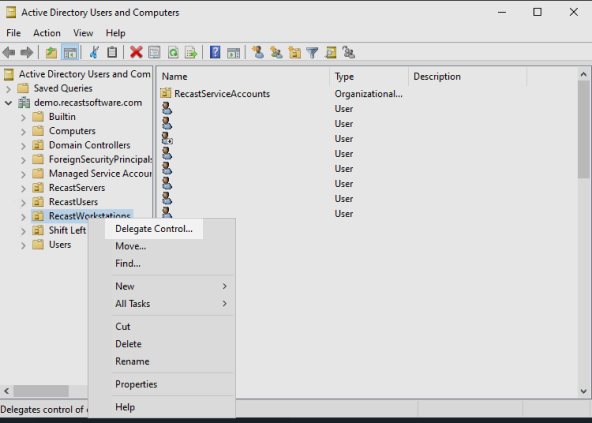
3. In the Delegation of Control Wizard, under Users or Groups, click Add.
4. Select or add the group being given access to view BitLocker recovery keys and click OK.
5. Under Tasks to Delegate, select Create a custom task to delegate.
6. Under Active Directory Object Type, select msFVE-RecoveryInformation objects.
7. Under Permissions, select Full Control.
You can grant a user or group permission to view BitLocker recovery keys for devices using an Entra ID role.
To use a built-in role, grant the user/user group Cloud Device Administrator or Helpdesk Administrator privileges.
You can also choose to create a custom role that delegates access to BitLocker keys using the microsoft.directory/bitlockerKeys/key/read permission.
To learn more, see Microsoft Learn | Helpdesk recovery in Microsoft Entra ID.
You can grant a user or user group permission to view LAPS recovery keys stored in a designated organizational unit (OU) in Active Directory.
Before you delegate access, you must have or create an OU and security group to designate.
To delegate access to LAPS recovery keys:
1. On the device where LAPS management utilities are installed, open a PowerShell prompt for an account with Domain Admin rights.
2. Import the LAPS PowerShell module: Import-Module AdmPwd.PS
3. Delegate read access to a user or group:Set-AdmPwdReadPasswordPermission -Identity "OU Name" -AllowedPrincipals "User or Group Name"
- Replace OU Name with the name of the OU for which the user or group will be able to read attributes
- Replace User or Group Name with the name of the user or group being delegated read permissions
- Specify multiple users or groups using a comma-separated list
